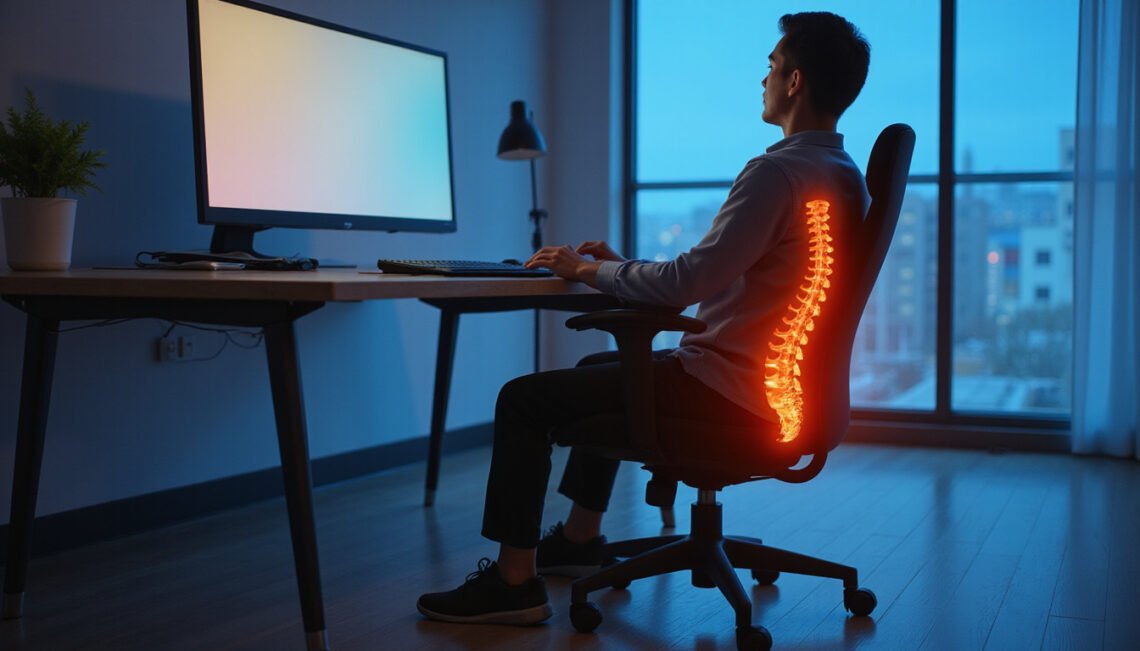
If you sit for hours every day, an ergonomic chair can be the difference between nagging back pain and comfortable, focused work. But simply owning an ergonomic chair isn’t enough—you need to know how to set it up and use it correctly. This guide walks you through practical, science‑backed hacks to sit smarter, reduce pain, and boost productivity, even if you’re on a budget or working from a small home office.
Why Your ergonomic chair Matters More Than You Think
Most knowledge workers sit more than 7–10 hours per day. Poor posture, badly adjusted seats, and improvised “office” setups put serious strain on your spine, hips, and neck. Over time, that can lead to:
- Lower back pain
- Neck and shoulder tension
- Headaches
- Reduced concentration and energy
A properly adjusted ergonomic chair supports your body’s natural curves, distributes pressure evenly, and allows subtle movement instead of locking you into a rigid pose. When combined with a few simple sitting habits, this can dramatically improve comfort and productivity.
According to the U.S. Occupational Safety and Health Administration (OSHA), reducing awkward postures and static positions is a key factor in lowering musculoskeletal disorders linked to computer work (source: OSHA Computer Workstations eTool).
Step 1: Start With the Right Chair (or Fix the One You Have)
Not everyone can buy a top-tier ergonomic chair immediately, but you can still optimize your setup. Think of this as a checklist.
Core features of a good ergonomic chair
Ideally, your chair should offer:
- Seat height adjustment so your feet rest flat on the floor.
- Lumbar support that matches the curve of your lower back.
- Seat depth adjustment (or at least a seat that doesn’t hit the backs of your knees).
- Adjustable armrests that move up/down and ideally in/out.
- Recline or tilt mechanism with some resistance control.
- A stable base with casters suitable for your floor type.
If your current seat has only some of these, don’t worry; simple add-ons can help.
Low-cost hacks for a non-ergonomic chair
If you’re using a basic office chair or even a dining chair, try this:
- Lumbar roll substitute: Roll up a towel or use a small cushion behind your lower back. Position it around your belt line to maintain a gentle curve.
- Seat height workaround: If the chair is too high and not adjustable, use a stable footrest, box, or stack of books so your feet are fully supported.
- Hard seat relief: Add a thin, firm seat cushion to distribute pressure on your hips and thighs.
- Back support for straight chairs: Use a wedge cushion or place the back of the chair slightly away from the wall so you can create a natural recline with a lumbar pillow.
These simple fixes can convert a basic chair into a more ergonomic chair setup without a major investment.
Step 2: Dial In Your Perfect Chair Height
Incorrect chair height is one of the most common ergonomic mistakes—and it’s easy to fix.
The 90–100° rule
When seated:
- Your knees should be about level with or slightly below your hips.
- Your feet should be flat on the floor (or on a footrest), not dangling.
- Your elbows should be at about 90–100° when your hands are on the keyboard.
How to set the height:
- Stand in front of your chair and adjust the seat so the top of the cushion is roughly at the bottom of your kneecap.
- Sit down and check:
- Can you place your feet flat on the floor without pressure under the back of your thighs?
- Are your knees bent comfortably around 90°?
- If your desk is too high and you raise your chair to match it, use a footrest to keep your lower body supported.
A properly adjusted ergonomic chair height reduces strain on your lower back and improves circulation to your legs.
Step 3: Master Lumbar Support and Backrest Position
Your lumbar spine naturally curves forward. When you slouch, that curve collapses, increasing disc pressure and stressing ligaments and muscles.
How to set lumbar support correctly
- Sit all the way back in your ergonomic chair so your hips touch the backrest.
- Adjust the lumbar support so it fills the space in your lower back and sits roughly at your belt line.
- The support should feel noticeable but not like a hard lump.
If your chair doesn’t have built‑in lumbar support:
- Use a small pillow, lumbar roll, or rolled towel.
- Avoid large, overstuffed cushions that push you too far forward.
Get the backrest angle right
You don’t need to sit bolt upright at 90°. Research suggests a slight recline can reduce spinal load.
- Aim for a 100–110° recline for typical computer work.
- If your chair has a tilt lock, set it so the back moves with you but doesn’t flop backward.
- Use your backrest: your torso should rest mostly on the back of the chair, not just your muscles holding you up.
A well-adjusted backrest turns your ergonomic chair into active support, not a passive prop.
Step 4: Optimize Seat Depth and Armrest Position
Seat and armrest adjustments often get ignored, yet they affect both comfort and circulation.
Seat depth: avoid cutting off circulation
When seated all the way back:
- There should be 2–3 fingers’ width of space between the back of your knees and the front edge of the seat.
- If the seat is too deep:
- Slide the seat pan back (if possible), or
- Add a lumbar cushion to bring you slightly forward.
- If it’s too shallow, you may feel like you’re perching. A wedge cushion can extend the surface slightly.
Too-deep seats can compress blood vessels and nerves behind your knees, leading to numbness or discomfort.
Armrests: support, not interference
Armrests on an ergonomic chair should:
- Let your shoulders relax down, not hunch up.
- Keep your elbows near your sides, not flared out.
- Allow your forearms to rest lightly, not bear your full body weight.
Adjust them so:
- The tops of the armrests are roughly level with the keyboard height when your shoulders are relaxed.
- They slide in close enough that your arms aren’t reaching out to the sides.
- They don’t bang into the desk, forcing you to sit too far away from your work.
If your armrests won’t adjust enough and cause bad posture, it’s often better to lower or even remove them than to fight them.
Step 5: Align Your Chair With Your Desk, Screen, and Keyboard
Even the best ergonomic chair can’t fix a bad desk and monitor setup. Your whole workstation needs to work as a system.
Monitor and keyboard alignment
- Sit in your chair in your best posture.
- Place your keyboard and mouse directly in front of you, close enough that your elbows remain near your body.
- The top of your monitor should be at or slightly below eye level.
- The screen should be about an arm’s length away (adjust for vision needs).
If your screen or keyboard is too high or low, you’ll end up craning your neck or shrugging your shoulders, undoing your ergonomic chair benefits.
Distance to the desk
- Pull your chair in so you can sit close to your work without leaning forward.
- Your back should stay against or close to the backrest while you type or use your mouse.
- If the desk edge digs into your forearms, use a wrist rest or reposition equipment.
Your goal: your chair and workstation allow neutral posture with minimal reaching or twisting.

Step 6: Build Micro-Movement Into Your Day
Ergonomics isn’t about freezing you into a “perfect” posture. Static positions—even good ones—become stressful when held too long.
Movement hacks while sitting
Use your ergonomic chair as a movement platform:
- Gently rock or recline every few minutes.
- Shift your hip position slightly: a tiny forward or backward slide.
- Alternate crossing and uncrossing your ankles (but avoid sitting cross-legged on the seat).
- Take micro-breaks every 25–30 minutes:
- Stand up.
- Roll your shoulders.
- Walk 30–60 seconds.
Mini stretch routine (2–3 minutes)
Once or twice per hour:
- Neck stretches: Gently tilt your head to each side, holding 10–15 seconds.
- Chest opener: Clasp hands behind your back (or hold the chair), gently open your chest.
- Seated hip stretch: Cross one ankle over the opposite knee; lean forward slightly from the hips.
These small movements keep your joints lubricated and muscles active, complementing your ergonomic chair setup.
Step 7: Simple Upgrades to Supercharge Your Chair
If your core setup is good, a few targeted add-ons can take your comfort and productivity even further.
High-value accessories
- Footrest: Essential if your desk height forces you to raise your chair. Relieves pressure on the backs of your thighs and lower back.
- Adjustable laptop stand or monitor arm: Brings screens to eye level while your chair stays in its optimal configuration.
- External keyboard and mouse: Critical if you work on a laptop; allows neutral arm and wrist posture.
Habit hacks to pair with your ergonomic chair
- Use the Pomodoro technique (25 minutes focused work, 5-minute break) and stand or walk during breaks.
- Keep a water bottle nearby; hydration reminders can double as movement cues.
- Set a posture reminder on your phone or with software to reset your position every hour.
Quick Checklist: Is Your ergonomic chair Set Up Correctly?
Use this list to audit your setup:
- [ ] Feet flat on the floor or footrest, knees ~90°.
- [ ] Hips level with or slightly above knees.
- [ ] Sitting back in the chair, hips touching the backrest.
- [ ] Lumbar support fits the curve of your lower back (around belt line).
- [ ] Backrest slightly reclined (100–110°), not locked at 90°.
- [ ] 2–3 fingers’ space between knees and seat edge.
- [ ] Armrests support relaxed shoulders and elbows at ~90–100°.
- [ ] Keyboard and mouse close, directly in front of you.
- [ ] Monitor top at or just below eye level, about an arm’s length away.
- [ ] You can work with your back against the backrest, without leaning forward.
If you can tick most of these, you’re using your ergonomic chair to its full potential.
FAQ: Getting the Most From Your ergonomic chair
1. How should I sit in an ergonomic office chair to avoid back pain?
Sit all the way back so your hips touch the backrest, and adjust the lumbar support to match your lower back curve. Keep your feet flat, knees at roughly 90°, and slightly recline the backrest to about 100–110°. Position your keyboard, mouse, and monitor so you can work without leaning forward.
2. Is an ergonomic computer chair really worth it if I already have a decent desk?
Yes. A quality ergonomic computer chair directly supports your spine, hips, and shoulders in ways a desk cannot. Even with a good desk, a non-supportive chair can lead to slouching, muscle fatigue, and reduced focus. If budget is limited, upgrading the chair often brings more comfort gains than upgrading the desk.
3. What’s the best ergonomic chair setup for long hours of gaming or coding?
For long sessions, prioritize a well-adjusted lumbar support, a slight recline, and armrests that align with your desk and peripherals. Use a footrest if your feet don’t rest flat. Keep your monitor centered at eye level and slightly farther than for casual browsing. Combine this with scheduled standing and stretching breaks to prevent stiffness and eye strain.
Ready to Transform How You Sit and Work?
You don’t need a brand-new office or a top-tier designer seat to feel a big difference. By correctly adjusting your ergonomic chair, aligning it with your desk and screen, and building in small movement habits, you can cut back pain, reduce fatigue, and unlock deeper focus—starting today.
Take 10–15 minutes right now to go through the checklist above, adjust your chair, and make any quick fixes with cushions, boxes, or simple add-ons. If you’re still battling discomfort after optimizing your setup, consider upgrading to a truly supportive ergonomic chair—the improvement in comfort and productivity will often pay for itself in a matter of months.
Your body will be sitting for thousands of hours this year. Make those hours work for you, not against you.